If you’ve ever tried to upload a stunning 8K HDR video to YouTube and ended up with something that looks… not so stunning, you’re not alone.
When I first attempted it, my “HDR masterpiece” got downgraded to SDR, and I couldn’t figure out why. Turns out, uploading 8K HDR to YouTube is way more than just hitting the export button. It’s about color space, bit depth, metadata, and knowing how to talk to YouTube’s processing pipeline.
So, I put together this ultimate guide to help you do it right the first time. Whether you’re a post-production pro or an advanced hobbyist like me, this post will walk you through the exact steps to get that crispy HDR badge next to your video.
Why HDR and 8K Matter for YouTube Today
Let’s start with the why:
YouTube isn’t just a platform anymore—it’s the place for showcasing high-end content. HDR (High Dynamic Range) adds a ton of depth and realism to videos. And 8K? It’s not just about pixel count; it’s about future-proofing and blowing people’s minds with razor-sharp visuals.
Most modern TVs and even some phones now support HDR, and 8K support is growing. That means your content canlook incredible—but only if you upload it properly.
What YouTube Supports: Understanding HDR and 8K Requirements
Before diving into DaVinci Resolve or export settings, it’s important to know what YouTube actually supports:
- Resolutions: Up to 8K (7680×4320)
- Frame Rates: All standard framerates like 24, 30, 60 fps
- HDR formats: Rec. 2100 PQ and Rec. 2100 HLG
- Codecs: HEVC (Main10), ProRes, DNxHR
- Containers: .MOV and .MP4
YouTube also looks for HDR metadata, so even if your video looks HDR to you, YouTube won’t treat it that way unless the metadata is baked in or added manually.
Setting Up Your DaVinci Resolve Project for 8K HDR
If you’re using DaVinci Resolve, here’s how I set up my project:
- Timeline resolution: 7680×4320 (8K UHD)
- Timeline frame rate: Match your footage (usually 24, 29.97 or 59.94 fps)
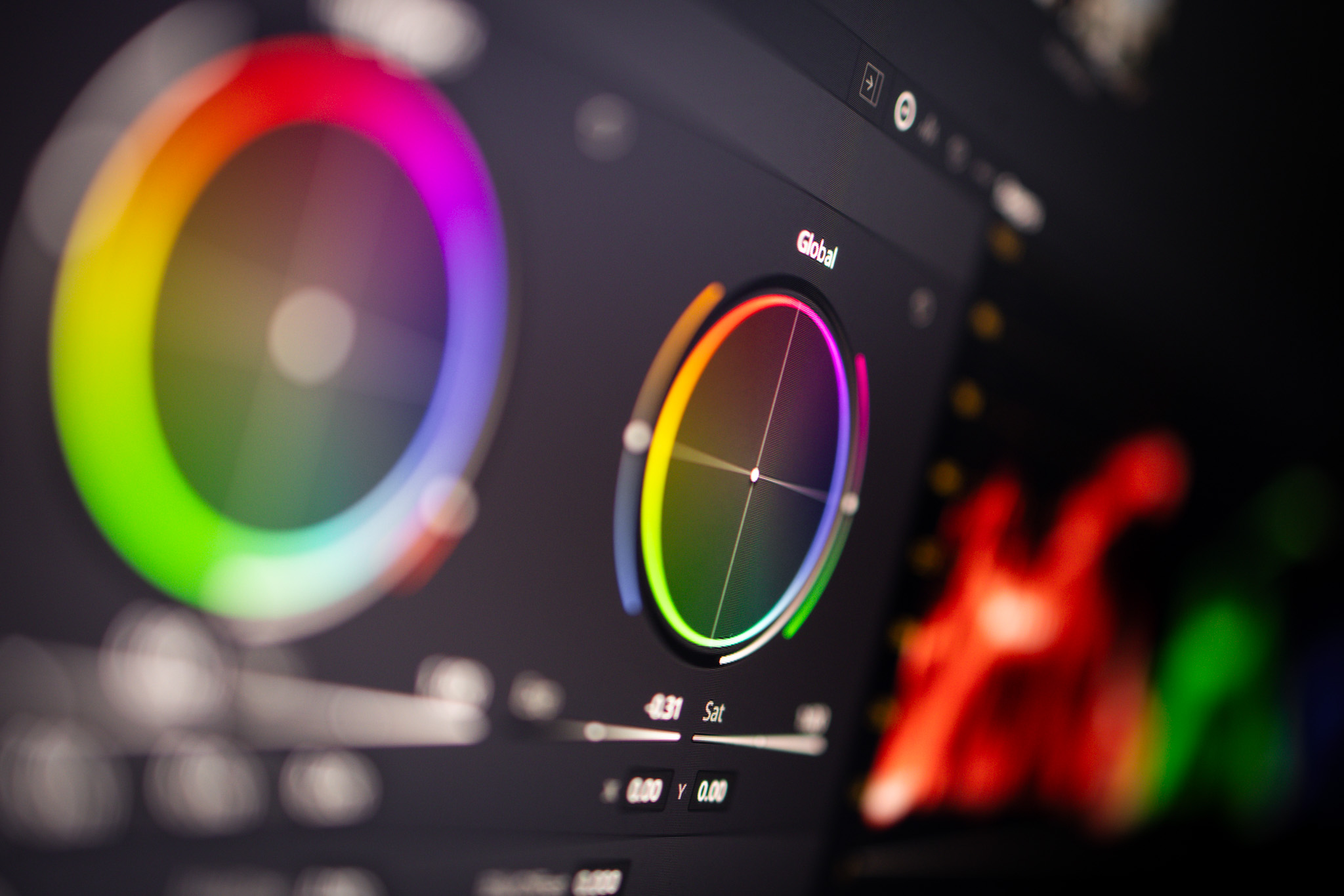
- Color science: DaVinci YRGB Color Managed
- Output color space: Rec. 2100 PQ (or HLG if your target devices prefer it)
- HDR mastering: Turn on HDR mastering and input display metadata:
- MaxCLL: 1000
- MaxFALL: 400
- Mastering Display: P3-D65, 1000 nits
These settings tell YouTube your video is true HDR, and not just “really bright SDR.”
Exporting Correctly: Deliver Page Settings for 8K HDR
Now for the actual export. The Deliver page is where things go wrong if you’re not careful. Here’s the setup that worked for me:
- Format: MP4 or MOV
- Codec: H.265 (a.k.a. HEVC)
- Type: Main10 (this means 10-bit)
- Resolution: 7680×4320
- Bitrate: Constant Quality or manually set (around 80–120 Mbps for YouTube 8K)
- Encoding Profile: Main10
- Color Space Tagging: Rec.2100 PQ (or HLG)
- Enable HDR10 metadata: Yes
Don’t forget to also check “Force sizing to highest resolution” if needed. I also recommend enabling “Use maximum bit depth” to ensure no info gets lost.
Quick Takeaways
- Use Rec. 2100 PQ and 10-bit timeline in DaVinci Resolve
- Export using HEVC Main10 or ProRes HQ
- Set correct mastering metadata (maxFALL, maxCLL, display color volume)
- HDR badge might take a few hours to show
- Always test playback on multiple devices before going public
Conclusion
Uploading 8K HDR content to YouTube isn’t rocket science—but it’s not plug-and-play either. If you’re like me and want your content to actually look like what you saw in your timeline, you’ve got to be precise.
Focus on getting your project setup right (especially the color space), export with proper settings (Main10, 10-bit, correct metadata), and check playback after upload. A bit of upfront work can save you a ton of frustration later.
Have you uploaded an 8K HDR video recently? I’d love to hear how it went. Drop a comment, share this with your fellow creators, or shoot me a link to your masterpiece!
FAQs
Why doesn’t the HDR badge show on my uploaded 8K video?
YouTube can take several days to finish processing HDR versions. Also double-check your metadata and export settings.
What is the best codec for 8K HDR YouTube upload?
HEVC Main10 is usually best. Small size, solid quality, and supported by YouTube.
How do I add HDR metadata in DaVinci Resolve?
In the Deliver page, turn on HDR10 metadata settings and input MaxFALL, MaxCLL, and mastering display info.
How long does YouTube 8K HDR processing take?
Anywhere from a few hours to a few days, depending on file size and internet speed.